

Description
Turn glossary terms into automatic links, show instant tooltips with definitions, and create a searchable A–Z glossary index page.
Automatically Highlight Glossary Terms and Show Tooltips
Glossary Tooltip automatically detects glossary terms in your WordPress website content, converts them into links, and displays clean, responsive tooltips with their definitions — helping visitors understand unfamiliar terms without leaving the page.
A built-in, searchable A–Z glossary index with live search lets visitors browse every term at a glance, while consistent internal linking between your content and its definitions improves both readability and site structure.
It’s well suited for blogs, documentation sites, knowledge bases, online courses, SaaS products, and any business, medical, financial, or legal website that relies on specialized terminology.
Learn more about Glossary Tooltip:
Official Website | Documentation | Demo | Video Tutorials | FAQs
Key Features
- Automatic term highlighting — publish a glossary term once and it’s automatically detected and linked across the post types you choose, with no manual linking.
- Responsive tooltips — definitions on hover (desktop) or tap (mobile), with configurable position, colors, width, and excerpt length.
- Searchable A–Z glossary index — a dedicated
[glossary_list]index page with alphabetical navigation, live search, categories, and flexible sorting and layout. - Categories, synonyms & aliases — organize terms into categories, and add alternate spellings or abbreviations that highlight and link back to the same term.
- Per-post and per-term overrides — turn highlighting or tooltips on or off for individual posts, pages, or specific terms, independent of the global settings.
- Flexible parsing controls — limit highlighting to chosen post types, skip headings and existing links, exclude specific HTML tags, control repeat/skip behavior, and exclude content with the
[glossary_exclude]shortcode. - Built for performance — optional content caching, footer script loading, inline asset delivery, and smart parsing that skips content with no matching terms.
- Settings backup & migration — export or import all plugin settings as JSON, reset to defaults, and move glossary terms between sites with WordPress’s built-in Tools Export/Import.
Shortcodes
This plugin includes two shortcodes: [glossary_list] to display your glossary index, and [glossary_exclude] to turn off glossary highlighting on part or all of a specific post or page.
[glossary_list]
Add this shortcode to any post or page to display your full glossary list there — an alphabetically organized (A-Z) list of all your glossary terms, with optional jump navigation and a live search box.
Basic example, showing every glossary term with the default settings:
[glossary_list]
Supported attributes
category="all"— Only show terms assigned to one or more Glossary Categories. Use a single category slug (e.g.category="seo"), or several separated by commas to show terms matching any of them (e.g.category="seo,wordpress"). Defaults toall, which shows every term regardless of category.orderby="name"— Chooses how terms are sorted within each A-Z letter group. A term never moves out of its own letter group — only the order of terms inside each group, and the order the groups themselves appear in, followorderby/ordertogether. Accepted values:name(alphabetical),date(publish date),menu_order(the custom order set on the Glossary Terms screen), orrand(random order, reshuffled on every page load — group order is unaffected byorderin this case). Defaults toname.order="ASC"— Sets the sort direction used byorderby, and also the direction the A-Z letter groups themselves run in. Accepted values:ASC(ascending — groups run A to Z, terms sort oldest to newest fororderby="date") orDESC(descending — groups run Z to A, terms sort newest to oldest fororderby="date"). Defaults toASC. Has no effect on term order whenorderby="rand", and no effect on group order at all whenorderby="rand".letters="show"— Shows or hides the big A-Z letter heading above each group of terms. Accepted values:showorhide. Defaults toshow.limit="-1"— The maximum number of terms to display per A-Z letter group — not a total for the whole index. For example,limit="2"shows at most 2 terms under A, at most 2 under B, at most 2 under C, and so on. Use-1for no limit, showing every matching term. Defaults to-1.columns="2"— How many columns to arrange the terms into within each letter group. Accepts a whole number from1to6. Defaults to2.
Examples
Show only terms from the “SEO” category:
[glossary_list category="seo"]
Combine multiple attributes — “Web Development” terms only, newest first, up to 5 per letter, in 3 columns:
[glossary_list category="web-development" orderby="date" order="DESC" limit="5" columns="3"]
Add [glossary_exclude] marker to a specific post or page to turn off automatic glossary term highlighting for part or all of that content — the rest of your site keeps highlighting as normal.
It doesn’t display anything itself; the marker(s) are simply removed from the page when it renders and it supports two forms:
Paired form — wraps a specific section and excludes only that section, leaving the rest of the post highlighted normally:
[glossary_exclude]This paragraph will not have any glossary terms highlighted.[/glossary_exclude]
You can use the paired form as many times as you like in the same post — each pair excludes only the content between it.
Single-marker form — placed on its own, excludes everything from that point to the end of the content:
[glossary_exclude]
This is useful for pages where you don’t want glossary tooltips to appear in part or all of the content, such as a legal page, a code tutorial, or a post that already discusses a term in detail.
Excluding the entire post has the same effect as setting the “Glossary Highlight” option to Off on that post/page’s edit screen.
Need more shortcode examples?
See the complete shortcode documentation: Glossary Tooltip >> Documentation >> Glossary Page
Multilingual sites
Glossary Tooltip stores UTF-8 content and is compatible with multilingual plugins such as WPML and Polylang.
Documentation and support
Full documentation and setup guides are available at official website glossarytooltip.com.
For questions or issues, please use the support forum.
Screenshots


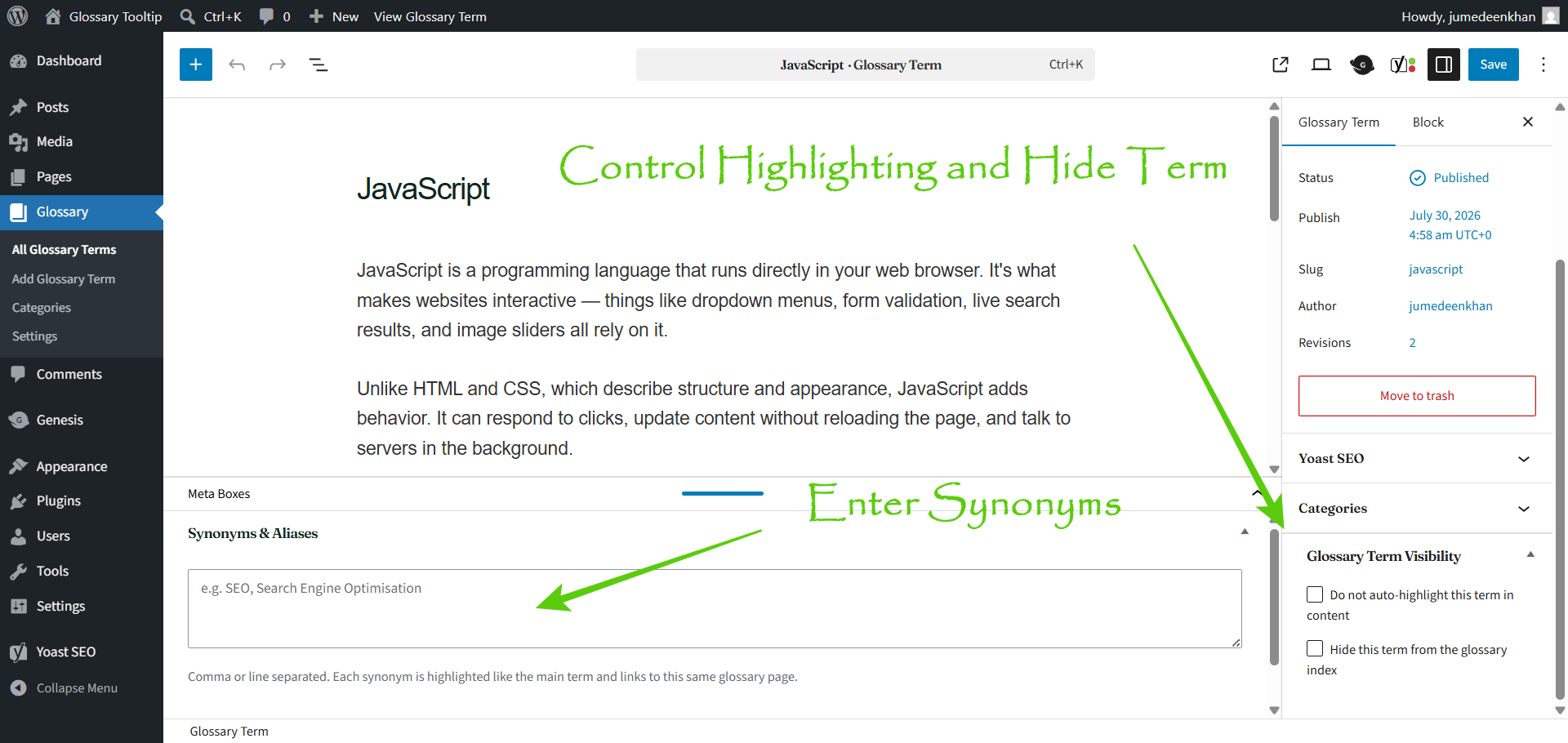


Installation
Automatic installation
- In your WordPress admin, go to Plugins Add New Plugin.
- Search for Glossary Tooltip.
- Click Install Now, then click Activate.
- Go to Glossary Settings to configure the plugin.
Manual installation
- Download the plugin ZIP file.
- In your WordPress admin, go to Plugins Add New Plugin Upload Plugin.
- Choose the downloaded ZIP file and click Install Now.
- Activate the plugin from the Plugins screen.
After activation
- Go to Glossary Add New Glossary Term.
- Enter the term as the title and its definition in the content editor.
- Publish the term.
- Visit any post or page containing that word to see it automatically highlighted with a tooltip.
- Optionally, create a page with the
[glossary_list]shortcode (or select a glossary index page in Glossary Settings) to display a full glossary index.
FAQ
-
Do I need to manually link glossary terms in my content?
-
No. Once a glossary term is published, the plugin automatically detects and highlights matching words across the post types you’ve selected in the settings.
-
How do I show a full list of glossary terms on a page?
-
Add the
[glossary_list]shortcode to any post or page, or select a glossary index page under Glossary Settings Glossary Index Page. The index lists terms alphabetically, with optional A–Z navigation and live search. -
Can I enable or disable highlighting for a single post or page?
-
Yes. Every post, page, and supported post type has its own Glossary Highlight and Tooltip settings, each set to Default, On, or Off, independent of the site-wide settings.
-
How do I prevent the glossary from parsing a paragraph?
-
Wrap the text with
[glossary_exclude]...[/glossary_exclude]to skip just that section, or place a single[glossary_exclude]marker to skip everything after it. To exclude an entire post, set its “Glossary Highlight” option to Off instead. -
Can I control tooltips for just one post or page?
-
Yes. Each post or page has a Tooltip setting — Default, On, or Off — that overrides the site-wide tooltip setting for that content only.
-
Can I stop one specific glossary term from being highlighted everywhere?
-
Yes. Every glossary term has its own visibility controls to exclude it from auto-highlighting and/or the glossary index, without affecting any other terms.
-
Can I control how many times a term is highlighted on the same page?
-
Yes. Under Glossary Settings General, choose to highlight each term once, a set number of times, every Nth occurrence, or every occurrence.
-
Can a term have alternate names or abbreviations?
-
Yes. Add synonyms or alternate spellings to any glossary term, and each one will be recognized, highlighted, and linked back to the same term.
-
Will highlighting break my headings or existing links?
-
No. By default, the plugin skips headings (H1–H6) and text already inside a link, so your existing structure stays intact. Both behaviors can be changed in the settings.
-
Does this affect my site’s internal search results?
-
You can optionally exclude glossary terms from your site’s internal search results under Glossary Settings General. This has no effect on Google or other external search engines.
-
Can I choose which side of the term the tooltip appears on?
-
Yes. Under Glossary Settings Tooltip, set the tooltip position to top, bottom, left, or right. Top is recommended for most layouts.
-
I changed the glossary permalink slug and now get 404 errors. How do I fix this?
-
Go to Glossary Settings Advanced and click Flush Rewrite Rules, or visit Settings Permalinks and click Save Changes.
-
I updated a term but the site still shows the old content. What should I do?
-
If content caching is enabled, click Clear Glossary Cache on the Advanced settings tab, then clear any third-party caching or CDN cache your site uses.
-
Can I back up or transfer my plugin settings to another site?
-
Yes. The Advanced settings tab lets you export all plugin settings as a JSON file, import that file on another site, or reset everything back to defaults.
-
How do I move glossary terms to another WordPress site?
-
Glossary terms are a standard WordPress content type, so you can move them with the built-in Tools Export and Tools Import screens.
-
How does Glossary Tooltip help improve my website’s SEO?
-
By creating internal links between related content and generating a dedicated page for each glossary term, it helps search engines understand your site structure while making it easier for visitors to find relevant information.
-
Can I customize glossary term titles?
-
Yes. Add a custom prefix — such as “What Is:” or “Definition of:” — before glossary term titles from the Glossary Term settings, without changing the term names themselves.
-
Does the plugin work with all WordPress themes?
-
Yes. It’s built to work with any standards-compliant WordPress theme, and has been tested with popular themes including Twenty Twenty-Five, GeneratePress, Astra, Kadence, and Blocksy.
If a theme or another plugin ever prevents glossary links or tooltips from displaying correctly, the settings include compatibility options to help resolve most conflicts.
-
Does the plugin slow down my site?
-
No. Built-in performance options let you skip parsing when no glossary terms exist, cache parsed content, load scripts in the footer, load assets inline, and limit parsing to the main query only.
-
Where can I get help?
-
Visit the support forum or the documentation site.
Reviews

Contributors & Developers
“Glossary Tooltip – Highlight Terms Automatically and Show Tooltips” is open source software. The following people have contributed to this plugin.
Contributors

“Glossary Tooltip – Highlight Terms Automatically and Show Tooltips” has been translated into 1 locale. Thank you to the translators for their contributions.
Translate “Glossary Tooltip – Highlight Terms Automatically and Show Tooltips” into your language.
Interested in development?
Browse the code, check out the SVN repository, or subscribe to the development log by RSS.
Changelog
2.5.0
- Fixed: Accented-letter grouping in the glossary index, and a footer-script loading edge case on older WordPress versions.
- Improved: Resolved all WordPress.org Plugin Check warnings and cleaned up code documentation to WordPress standards.
- Tested up to WordPress 7.1.
2.4.8
- Improved: Fixed several code quality and internationalization issues found by the WordPress.org Plugin Check tool (missing translator comments, unslashed input, readme formatting).
- Fixed: Glossary parsing was corrupting page builder layouts (Elementor, Avada/Fusion Builder) by highlighting terms inside their live-editing canvas. Parsing now skips content while Elementor, Avada, Divi, Beaver Builder, WPBakery, or Oxygen is in active edit mode.
- Fixed: Accented/non-ASCII glossary terms were silently never highlighted in case-insensitive mode, due to
strtolower()not folding non-ASCII characters. Now usesmb_strtolower().
2.4.7
- Fixed: Settings page color-picker “default” swatches didn’t match the actual documented defaults.
- Fixed: A per-post settings meta box was missing
wp_unslash()before sanitizing deactivation-feedback fields. - Changed: The glossary single-page “back link” template now uses the shared
get_gtt_option()helper. - Removed: Unused CSS files and admin view stubs left over from earlier versions.
- Tested up to WordPress 7.0.2.
2.4.6
- Added:
[glossary_exclude]now supports a paired form —[glossary_exclude]...[/glossary_exclude]— excluding only the content between the markers, with multiple blocks supported per post. The original unpaired marker still works as before.
2.4.5
- Fixed:
[glossary_list order="DESC"]only reversed terms inside each A-Z letter group, leaving the groups themselves (A, B, C…) in ascending order.ordernow also reverses the letter-group sequence, running the whole index Z to A, with the jump-navigation links reordering to match.
2.4.4
- Fixed: The
[glossary_list]shortcode’scategoryattribute always returned an empty index, because the glossary category taxonomy wasn’t registered yet when the terms cache was first built. Plugin startup is now correctly deferred until theinithook.
2.4.3
- Changed: The
[glossary_list]shortcode’slimitattribute now caps the number of terms shown per A-Z letter group, instead of one total across the whole index.
2.4.2
- New:
[glossary_list]now acceptscategory,orderby,order,letters,limit, andcolumnsattributes for filtering, sorting, hiding letters, capping terms shown, and laying out 1-6 columns. - Fixed:
orderby/ordernow sort terms inside each A-Z letter group only — the groups themselves always stay in fixed alphabetical order.
2.4.1
- Changed: The glossary index shortcode is now
[glossary_list](underscore) per WordPress guidelines; the old[glossary-list]tag is deprecated. - Changed: The per-post “Disable glossary highlighting” checkbox has been replaced with two independent dropdowns — “Glossary Highlight” and “Tooltip” — each offering Default, On, or Off.
2.4.0
- New: “Tooltip position” setting on the Tooltip tab — above, below, left, or right of a highlighted term.
- New: “Maintenance Tools” card on the Advanced tab with one-click “Flush Rewrite Rules” and “Clear Glossary Cache” actions.
- New: System Information panel on the Advanced tab with a one-click copy-to-clipboard button.
- Changed: The Advanced tab’s Import/Export section is now scoped to plugin settings only (JSON); glossary term export/import now uses core’s Tools Export/Import.
- Improved: Performance and asset-loading options moved from Advanced back to General settings, under a new “Performance & Asset Loading” section.
- Improved: Settings screen visual design refined for a more consistent, modern appearance.
2.3.0
- New: Import & Export section on the Advanced tab — settings export/import/reset, glossary data export (CSV/JSON), and a 3-step migration wizard.
- New: All import/export/reset actions run over AJAX with nonce verification and a
manage_optionscapability check.
2.2.1
- Improved: Settings layout now uses the full available width with a proportional main/sidebar split; tab navigation redesigned into a segmented pill style.
- Improved: Content-parsing options moved from Advanced back to General settings, under a new “Content Parsing” section.
- Improved: Renamed the “Index Page” and “Terms” tabs to “Glossary Index Page” and “Glossary Terms” for clarity.
2.2.0
- New: Redesigned settings screen with a branded header, version badge, quick action links, and a two-column layout with a persistent sidebar for the installation guide and support links.
- New: “Advanced” settings tab groups parsing-performance and asset-loading options.
- New: “Highlight only space-separated terms” option to prevent matching inside compound words.
- New: “Load scripts in footer” option for faster perceived load times.
2.1.1
- Fixed: Deactivating the plugin no longer deletes your glossary settings.
- Fixed: “Disable tooltips on the glossary index” setting now works correctly.
- Fixed: Glossary highlighting no longer skips a page just because its slug happens to be “glossary”.
- Fixed: A closure/filter mismatch that could force all outgoing emails to HTML formatting after using the deactivation feedback form.
- Security: Added nonce verification to the deactivation feedback form and a capability check for the “disable highlight” post setting.
- Accessibility: Tooltips are now visible on keyboard focus, not just mouse hover.
- New: Synonyms/aliases for glossary terms.
- New: Per-term visibility controls (exclude a term from auto-highlighting and/or the glossary index).
- Improved: Replaced deprecated
get_post_custom()calls with targetedget_post_meta()calls. - Improved: Corrected the plugin’s declared minimum PHP version to match the code.
- Improved: Synonym/alias matching now treats a term and its synonyms as one keyword group, always preferring the longest match to prevent overlapping links.
2.0.1
- Improved tooltip behavior.
- Performance improvements.
- Minor fixes.
2.0.0
- Added advanced glossary settings.
- Added glossary index improvements.
- Added tooltip customization options.
- Added live search on the glossary index.
- Improved parsing performance.
1.0.1
- Settings improvements.
1.0
- Initial release.