

Description
Most location finders decide in advance what a location is: a store with a phone number, or a clinic with services. If your locations do not fit that shape, you end up storing “Wheelchair accessible” in a field labeled Fax.
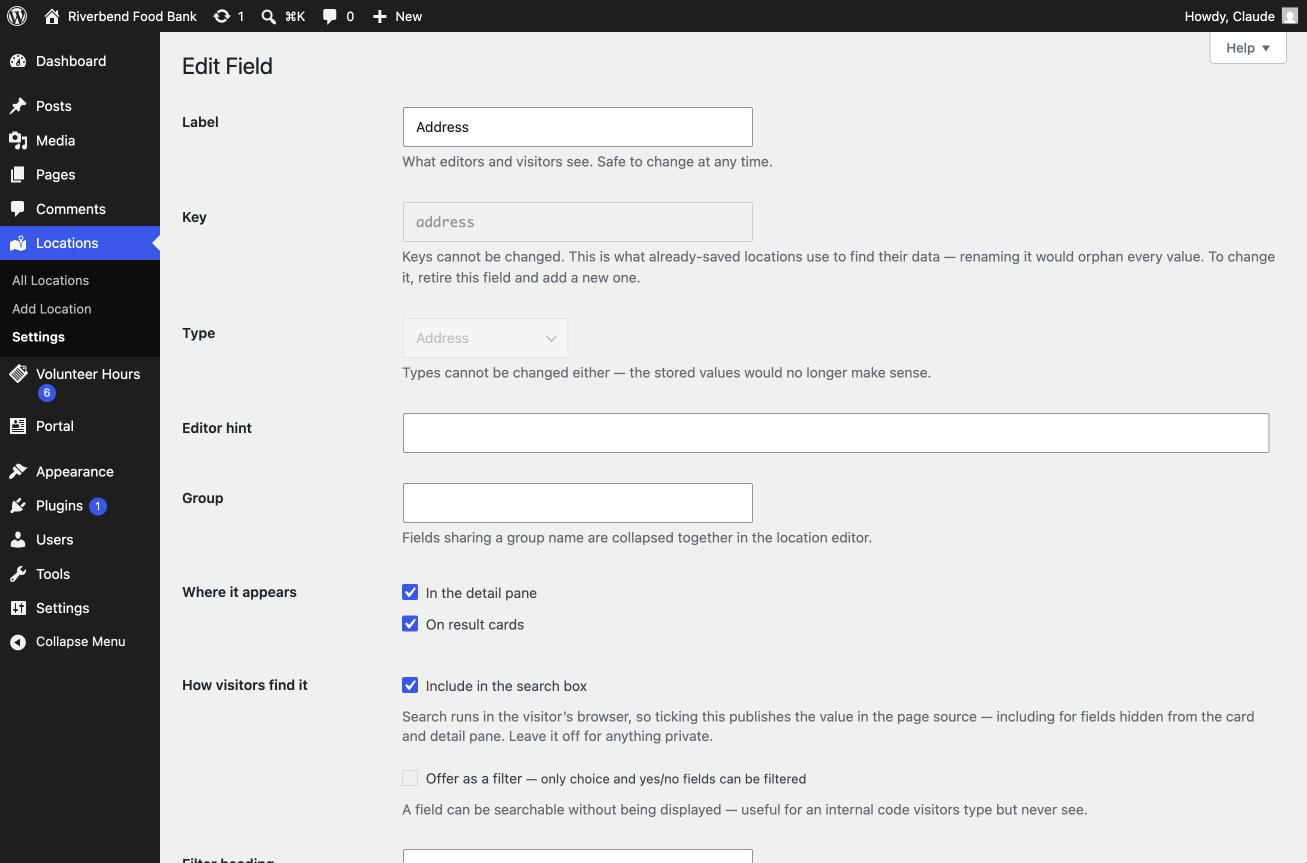
This plugin has three built-in fields — name, latitude, longitude — and nothing else. Every other field is one you define in wp-admin: its type, its label, whether it shows on the result card or only in the detail pane, whether it is searchable, whether it becomes a filter. A food bank defines Services and Eligibility. A clinic defines Specialties and Languages Spoken. Neither pretends to be the other.
Field types
Nine simple types — text, textarea, URL, email, phone, number, yes/no, select, multi-select — plus three composites that are genuinely hard to do by hand:
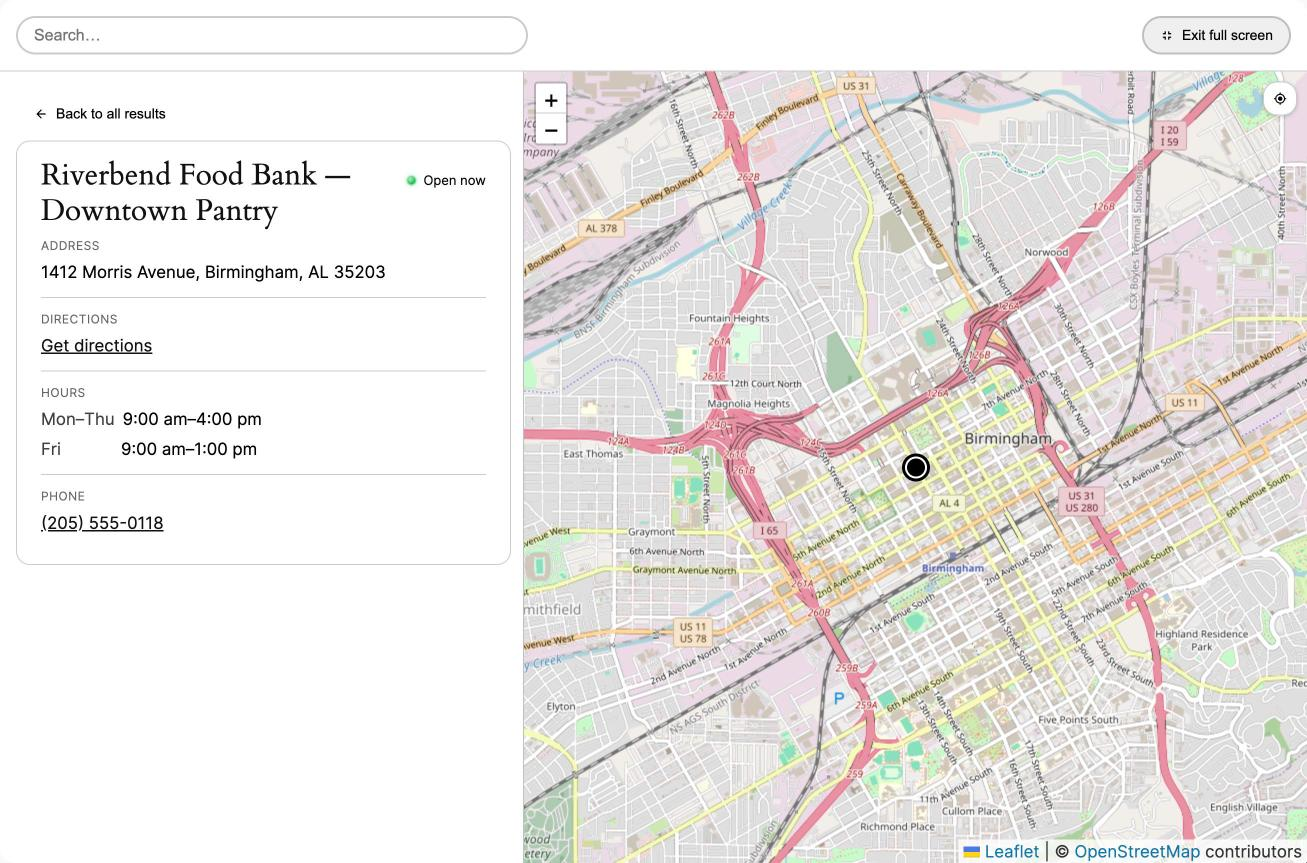
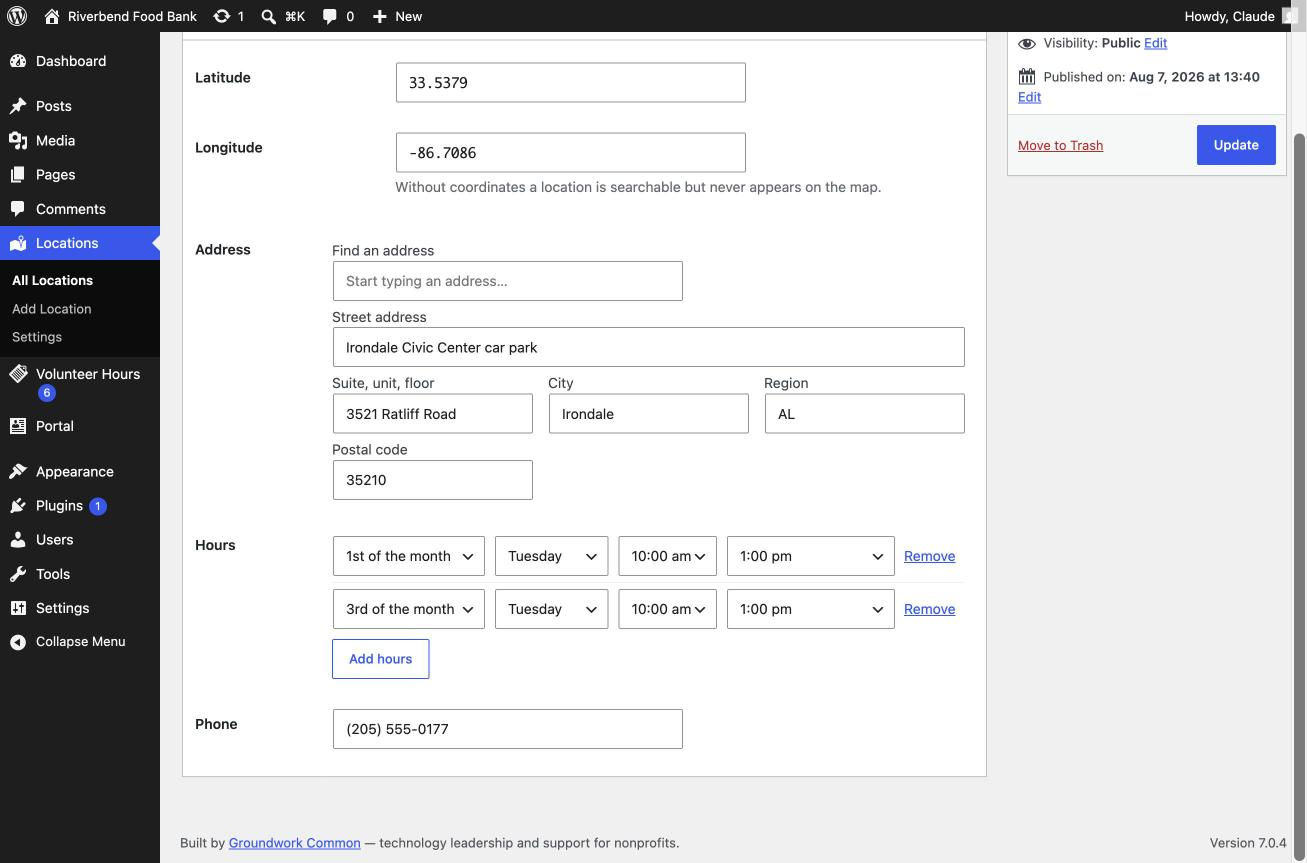
- Address — six subfields, a formatted one-line version, and a directions link.
- Recurring hours — not just “9–5 Monday”, but “2nd and 4th Tuesday, 9am–4pm”. Consecutive days collapse on display, so seven rows read as “Mon–Fri 9am–5pm”.
- Temporary closures — a date range with a reason. While one is active, the location shows a closure notice and stops reporting itself as open.
What visitors get
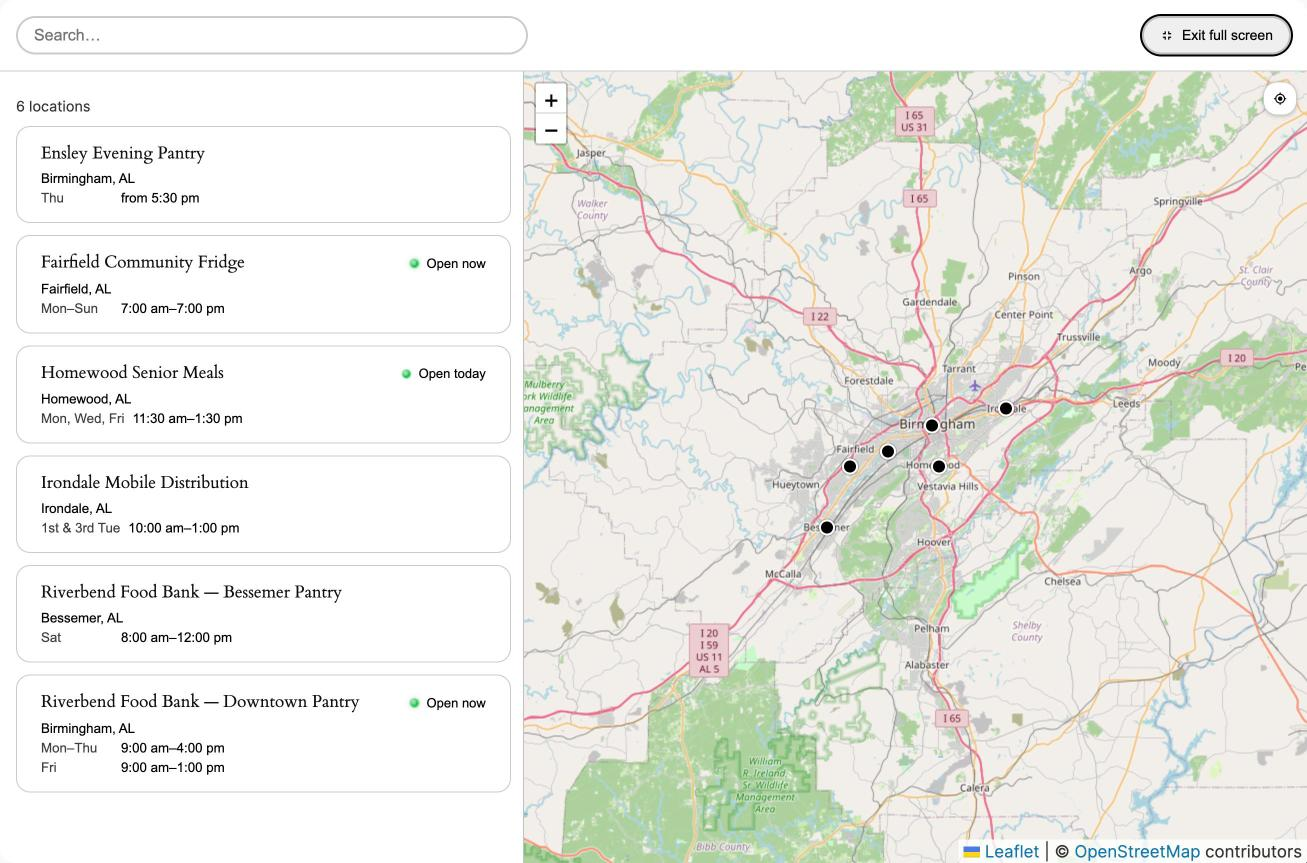
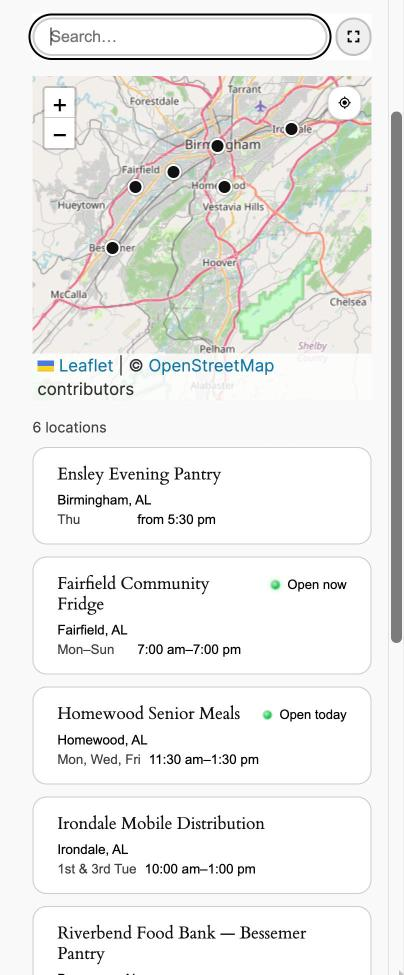
A map with pins and a list beside it, on one screen. Type to search; the typeahead suggests location names, cities, and the values of your own choice fields. Filter with chips. Press the crosshair button on the map to sort by distance from where you are — it is a sort, not a radius, so the nearest location is always shown even when it is 40 miles away. Selecting a location opens its details in place, without a page load.
It works without JavaScript, too: the page renders a plain list of locations that search engines can read and JavaScript replaces on boot.
Theming
The stylesheet ships structure, not opinions. Colors come from currentColor and the CSS system colors, so the finder inherits your theme’s palette, follows dark mode, and survives Windows High Contrast without configuration.
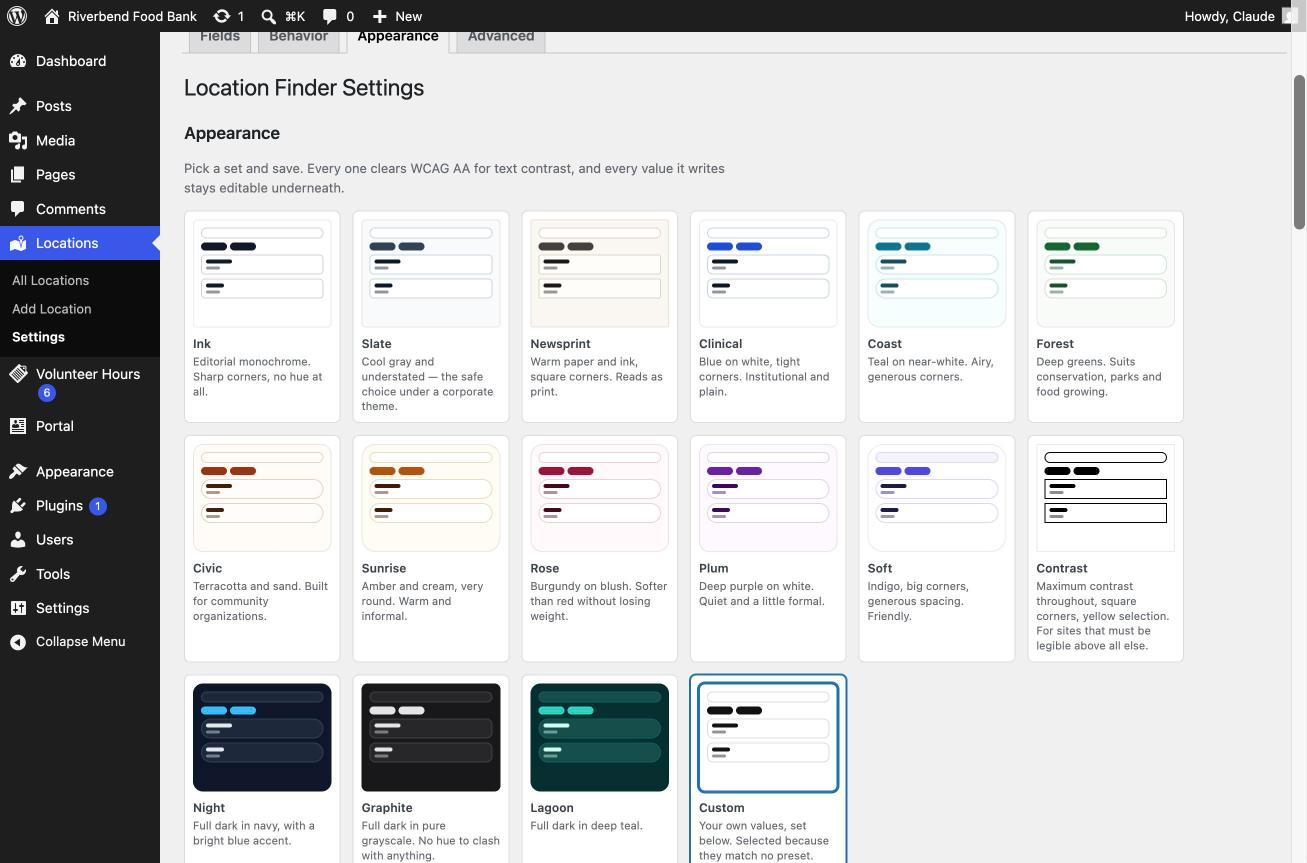
If you do want to color it, the Appearance tab has fifteen presets and twenty-five individual settings. Preset colors are all checked to WCAG AA contrast. Settings that override your theme do so with custom properties and no !important, so a theme that deliberately styles the finder still wins.
Privacy
The plugin sets no cookies, adds no tracking, and sends nothing about visitors to your server or anyone else’s. Location data stays in your database. The locate button reads the browser’s geolocation only after the visitor presses it, and the coordinates are used in the browser and never transmitted.
By default the map does not load until the visitor asks for it — see Ask before loading the map below. When they do, the choice is remembered in sessionStorage for that browsing session only. That is the one thing the plugin stores in a visitor’s browser: a single flag, never sent anywhere, gone when the tab closes.
See External services below for what does leave the site.
External services
This plugin relies on external services. Both are optional in the sense that they can be pointed elsewhere, but the defaults contact third parties, so here is exactly what is sent and when.
1. Map tiles — OpenStreetMap or CARTO
The map is drawn from tile images fetched by the visitor’s browser, directly from the tile provider. That means the provider receives the visitor’s IP address, user agent, and the map area being viewed. No other data is sent.
Because the request comes from the visitor rather than from your server, nothing server-side can prevent it once a map is on screen. So the plugin does not load tiles until the visitor asks it to. The map area shows a placeholder naming the provider and a Show map button, and no request reaches the provider until that button is pressed. The search, filters, location list and detail pane all work regardless — a visitor who never loads the map still gets a working finder.
This is on by default and can be turned off under Locations Settings Behavior (Ask before loading the map). It is skipped automatically when the tiles come from your own site, since there is no third party to ask about.
Which provider depends on the Map style setting under Locations Settings Appearance:
- OpenStreetMap (default) —
https://tile.openstreetmap.org
Terms: OSMF tile usage policy
Privacy: OSMF privacy policy - Light, Voyager, Dark —
https://basemaps.cartocdn.com(CARTO)
Terms: CARTO legal
Privacy: CARTO privacy policy
Note: CARTO’s free basemap tier is for non-commercial use. Commercial sites should use OpenStreetMap, or set a Custom tile URL for a provider they have an account with. The settings screen states this next to those three styles and again whenever one of them is the active choice. - Custom — whatever URL you enter. Nothing is sent anywhere else.
Attribution is a license condition, not decoration. The plugin prints the provider’s required attribution on the map and it must not be removed.
2. Address lookup — Nominatim (OpenStreetMap)
Used only in wp-admin, and only when a logged-in editor types into the address field of a location and asks for suggestions. The address text typed into that box is sent to https://nominatim.openstreetmap.org/search from your server, and the matching addresses and coordinates come back. Visitors never trigger it, and no visitor data is involved.
Nominatim’s usage policy requires an identifying contact address in the request, so the plugin sends the site URL and the contact email from Locations Settings Advanced (your admin email, by default). Requests are throttled to one per second per user.
Terms: OSMF Nominatim usage policy
Privacy: OSMF privacy policy
Not a service call: the Get directions link points at Google Maps or Apple Maps. It is an ordinary link — nothing is sent until a visitor clicks it, and then it is their browser making the request, not your site.
About Groundwork Common
This plugin is built and maintained by Groundwork Common, a technology practice for nonprofits: fractional technology leadership, project work, and training for organizations that need senior help and cannot carry a full-time technologist.
One of our working principles is that good technology work should leave an organization more capable, not more dependent on whoever did it. Releasing this plugin is that principle applied. A food bank or a clinic should be able to put its locations on a map without commissioning custom work or renting something this ordinary by the month.
If you find this plugin useful, three things genuinely help:
- Recommend us. Mention us to a nonprofit who might benefit from our services. Referrals are how our business continues to grow its impact and reach.
- Support our WordPress plugins directly. While we offer the plugin free to you, it costs us to maintain it — the security updates, the compatibility testing against each new WordPress release, the bug nobody but you has hit. We can’t do it without your support, and we appreciate whatever support you can give.
- Report what broke. A clear bug report is worth more to us than most feature requests.
Third-party libraries
The plugin bundles one library and loads it from your own server. Nothing is fetched from a CDN, and there is no build step — every file the plugin ships is the file it runs.
Leaflet 1.9.4 — assets/leaflet/
License: BSD 2-Clause, included at assets/leaflet/LICENSE
Source: Leaflet 1.9.4 release
The bundled leaflet.js and leaflet.css are the official minified release files, byte for byte, with no modifications. The unminified source and the build tooling that produced them are at the URL above. The five PNGs under assets/leaflet/images/ are Leaflet’s own marker and layer sprites, under the same license.
All other code in this plugin is unminified and readable as shipped. The plugin’s own icons are inline SVG written directly in the source, not image files.
Screenshots
Blocks
This plugin provides 1 block.
- Location Finder A searchable map and list of your locations.
Installation
- Install and activate the plugin.
- Go to Locations Settings Fields and define the fields your locations need. You can also start with none — name and coordinates alone work.
- Add a location under Locations Add New. Type an address and the coordinates fill in for you.
- Put the finder on a page with the Location Finder block, or the
[gwc_lfndr_finder]shortcode.
FAQ
-
Do I need an API key?
-
No. Maps use OpenStreetMap tiles and a copy of Leaflet bundled with the plugin. Nothing to sign up for, nothing to pay, no key to leak.
-
How many locations can it handle?
-
Comfortably a few hundred. The whole set is embedded in the page so that search and filtering are instant, which costs roughly 1KB per location — around 35KB compressed at 200 locations. Past about a thousand, that page weight stops being a fair trade and this becomes the wrong plugin.
-
What happens to my data if I delete a field?
-
Nothing is erased. The field moves to a Retired list, and its data stays on every location. Restore it and the values are still there. Permanently deleting the data is a separate action behind a typed confirmation.
Field keys cannot be renamed after creation for this reason — a rename is a delete plus a create, which routes through retirement, so data is never lost quietly.
-
Does uninstalling delete my locations?
-
Never. Uninstalling removes the plugin, not your records — locations and their field values survive, and reinstalling picks up where you left off. If you also want the field schema and settings removed, that has to be armed deliberately:
update_option( 'gwc_lfndr_allow_destructive_uninstall', true );Even then, the locations themselves stay.
-
Can I have two sets of hours, or two addresses?
-
Yes. Add as many as you like — “Pantry hours” and “Office hours”, or “Mailing address” and “Visiting address”. One of each is marked as the one that drives behavior: which address the map pin and directions use, which hours the “Open now” badge reads. The others display and search normally.
-
The finder doesn’t match my theme.
-
Check Locations Settings Appearance. If it looks close but wrong, the theme is probably styling
buttonorselectglobally; the presets exist to override that. If it looks unstyled entirely, the stylesheet is not loading — the finder must be added as a block or shortcode, not pasted as raw HTML. -
Is it accessible?
-
That was a design constraint, not a pass at the end. Native elements throughout, the reorder controls are buttons with live announcements rather than drag-and-drop, and every preset meets WCAG AA contrast.
Reviews
There are no reviews for this plugin.
Contributors & Developers
“Groundwork Common Location Finder” is open source software. The following people have contributed to this plugin.
Contributors
Translate “Groundwork Common Location Finder” into your language.
Interested in development?
Browse the code, check out the SVN repository, or subscribe to the development log by RSS.
Changelog
1.0.0
- First release.